Installing VS Code and Python
We’re going to start with installing python so that your VS code is ready to work with python3 once it is installed
Installing Python (3.12) - Mac
There are several ways you can install python 3.12 on a mac. I have a certain preferred way that involves using homebrew, but that’s better suited for power users. If you want to learn about this method, come to my office hours and ask me about it :-).
Most likely, the easier method for you will be going to the main python website and using the installer for mac.
Step 1 - Navigate to the Python downloads page and select the correct version of python3.12 (Python 3.12.10)
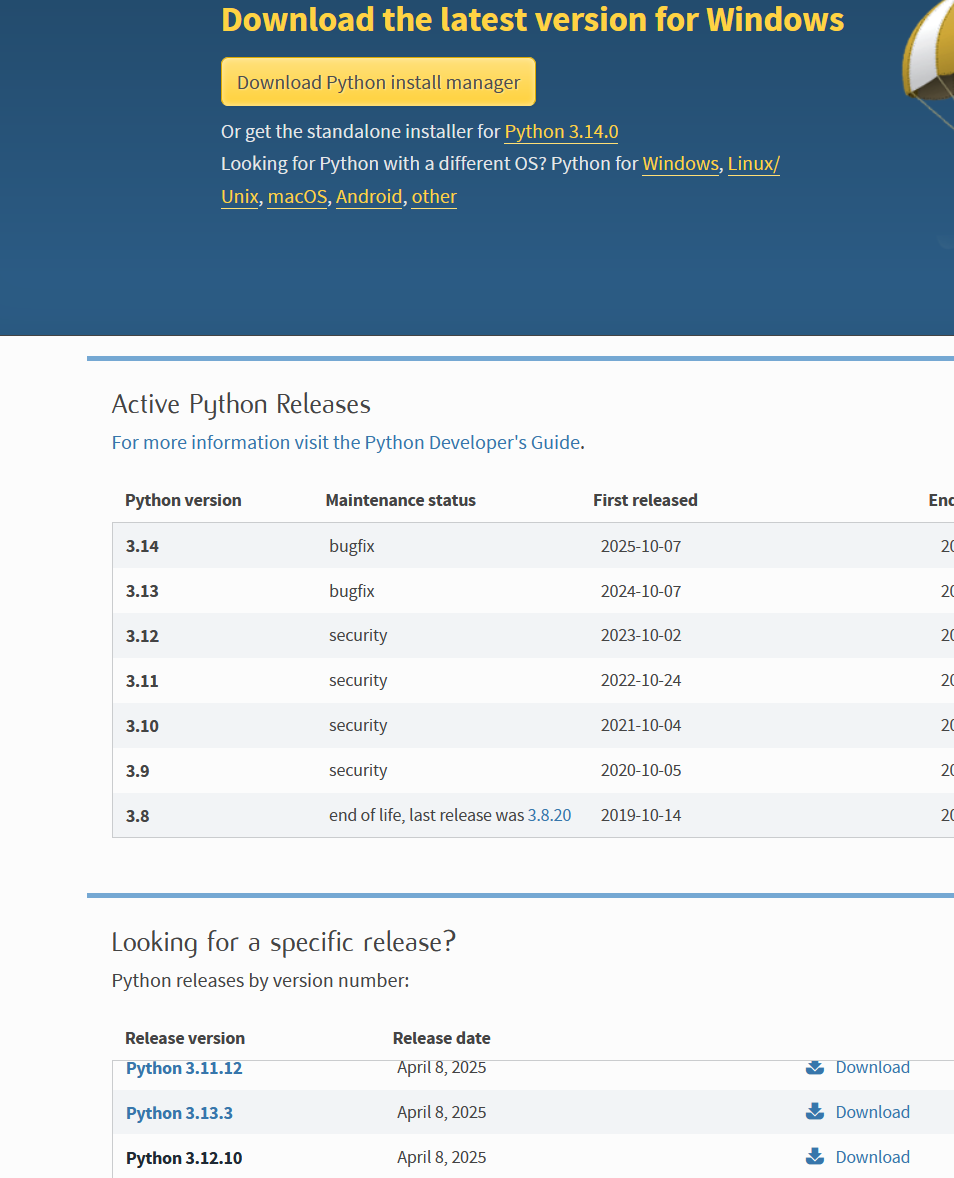
Step 2 - Download the correct installer and run the installer
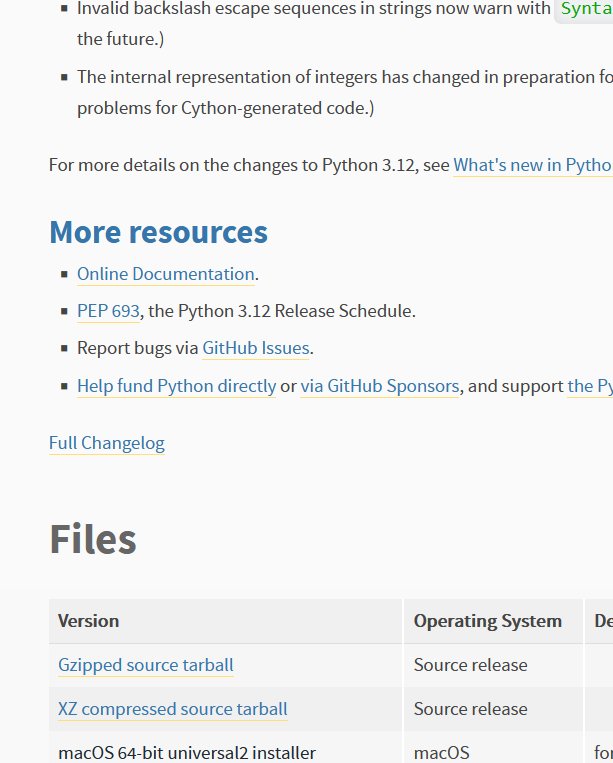
Once you’ve run the installer on your mac, everything should be configured correctly. You can verify python3.12 has installed correctly by opening your terminal and trying it out: 1) Press cmd+space -> type terminal in the window -> hit enter 2) Now you should see a little terminal window -> type python3 into the terminal window. If successful, you should see a python interpreter show up (see screenshot below). The screenshot below will look slightly different on your machine as I’m running the command in a terminal window in VS code (see next section). In this screenshot I also am using a different version of python3 - your screen should show 3.12.10.

Installing Python (3.12) - Windows
Most likely, the easiest method for you to install python 3 is goingto be using the main python website and using the installer for Windows.
Step 1 - Navigate to the Python downloads page and select the correct version of python3.12 (Python 3.12.10)
Step 2 - Download the correct installer and run the installer (BUT SEE NOTE BELOW)
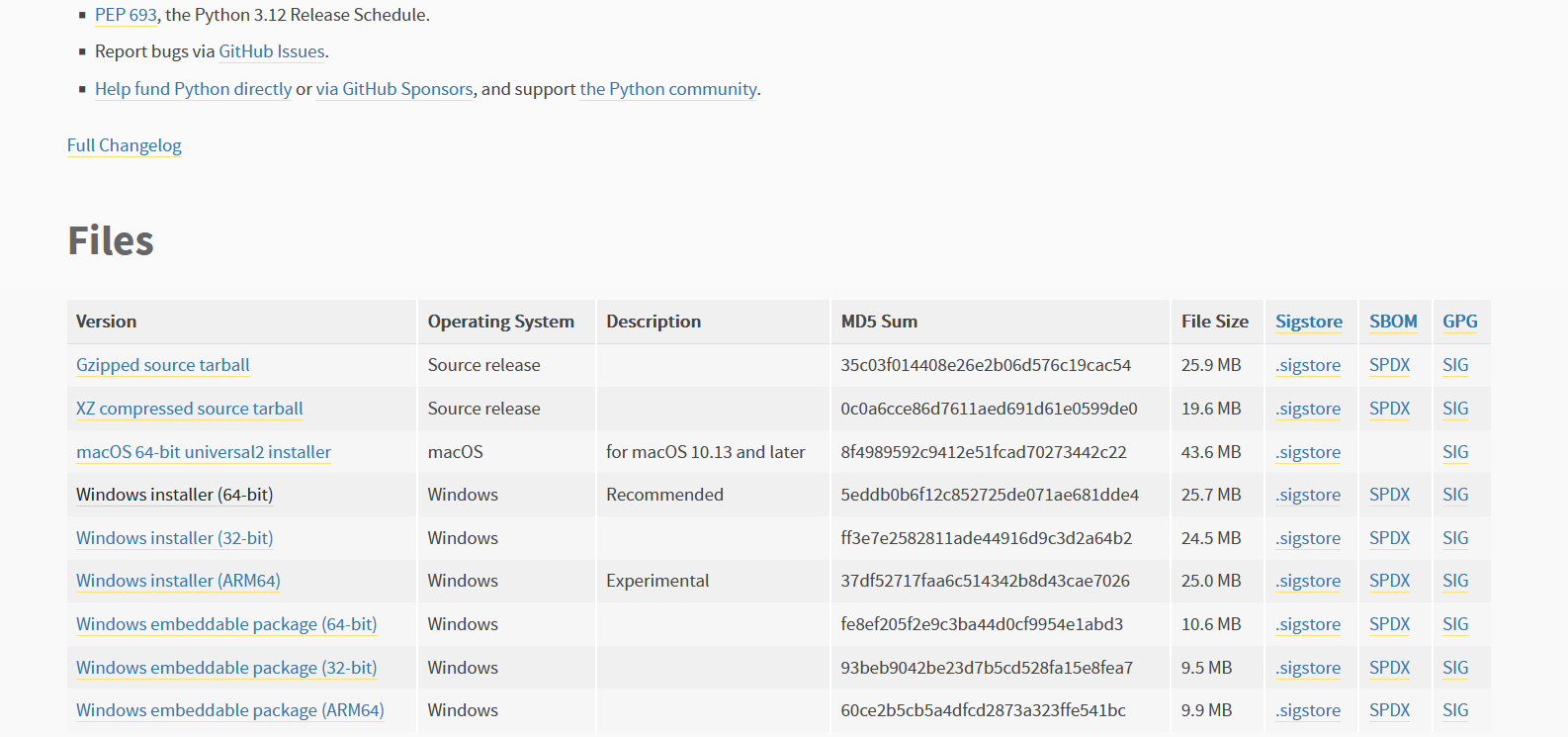
Important: when you go through the install screens, there is one very important option (see below) 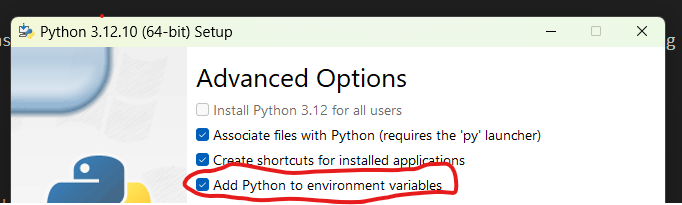
Once you’ve run the installer on your windows, everything should be configured correctly. You can verify python3.12 has installed correctly by opening your terminal and trying it out: 1) Press your windows key (or click the windows icon on your task bar) -> type command prompt and hit enter 2) Now you should see a little command prompt window -> type python into the window. If successful, you should see a python interpreter show up (see screenshot below). The screenshot below will look slightly different on your machine as I’m running the command in a terminal window in VS code (see next section). In this screenshot I also am using a different version of python3 - your screen should show 3.12.10.
Installing Visual Studio Code
Good News! Installing VS code is relatively simple whether you are on a mac or Windows machine. (I assume that if you’re in linux, then you know what you’re doing :-))
All you need to do is navigate to the Visual Studio code website (click here) and download the correct installer for your platform (it most likely will show you the correct version on the main screen)
Once you’ve installed VS Code: 1) Open VS code if it isn’t already open 2) Open Terminal
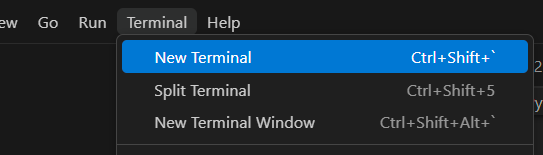
Assuming your testing of python3 worked earlier, you should now have everything setup!